How to give coding agents visual feedback on a Mac
Show your coding agent the exact part of the UI you want changed and tell it how to reproduce the issue. With Lasso on macOS, you can draw over a browser preview or a native app, then hand off an annotated screenshot or a voice brief.
On this page
Annotate a screenshot for Claude Code, Codex, or Cursor
macOS asks for Screen Recording permission when Lasso needs to capture the screen.
- Open the screen in the state you want the agent to see. Note the route or window name and how you got there. Include the viewport width if the issue depends on it.
- With Lasso running, press Option–Shift–A (⌥⇧A). Circle the affected area or draw an arrow to the exact control. For several issues, press C and add a numbered mark for each one.
- Press Shift–S (⇧S) and select the relevant area. Keep enough of the surrounding UI to identify the screen, then check the capture for anything private.
- Drag the screenshot into your coding agent’s chat, or save it as a PNG and point the agent at a file it can read. Add the steps to reproduce the issue and what you expect to happen.
Example prompt for a UI fix
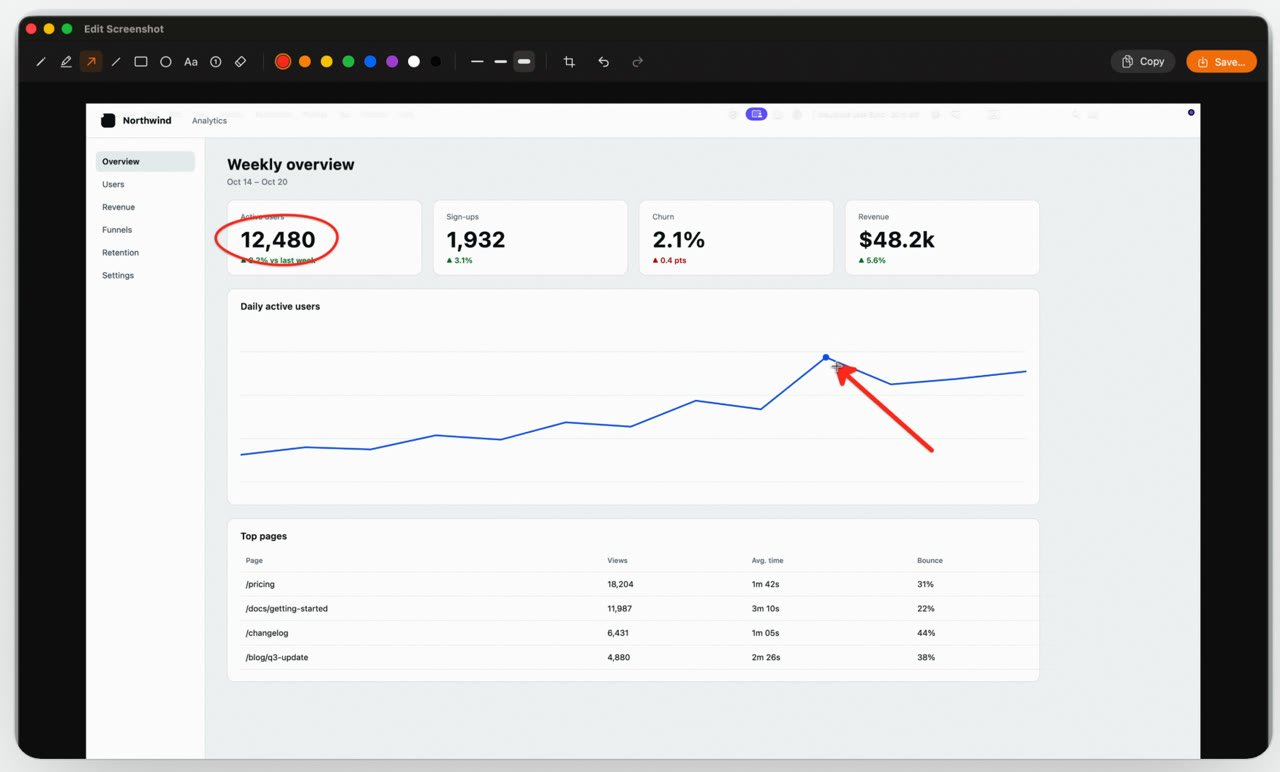
In the screenshot above, the arrow points to one data point and the circle identifies a card with a different job. Attach the screenshot and use a prompt like this.
“Open Weekly overview at /analytics with Oct 14–20 selected. Show the date and daily count on hover and keyboard focus at the chart point marked with an arrow. Keep the circled Active users card as the weekly total. Check the tooltip with a mouse and a keyboard, then repeat with another date range.”
For a bug report, describe what happens before the fix as well. Paste the exact error message so the agent can search the repository for it.
Talk through a UI review and send a Markdown brief
- While drawing in Lasso, press V and speak as you make each mark. For example, circle a clipped label in your app’s settings while asking the agent to let it wrap.
- Press V again to finish. Lasso saves a Markdown transcript with references such as [1] at the words you said while making each mark. It also saves the marked-up display and close-ups when screen capture is allowed.
- Paste the brief into your agent session and attach the relevant images. If the agent is running remotely, upload the Markdown and PNGs so it can read them.
Let a local coding agent read your feedback through MCP
Connect Lasso to a local Claude Code, Codex, or Cursor session on the same Mac. Ask the agent to use get_screenshot to read your recent Lasso capture, or get_brief to read the latest voice brief from the current Lasso session.
Lasso asks before the first agent tool call. The connection stays on your Mac, and the AI client handles what it receives according to its own data settings.